|
How to Fix Playback Issues When Accessing on a Mobile Device by CGENTRY |
2022.01.30 16:46 |
|---|
First, the official CGENTRY mobile page is as follows.
Normally, when you access https://cgentry.co.kr on a mobile device, you will be automatically redirected to https://cgentry.co.kr/m/.
If you are not redirected, please check whether the browser you are using is running in desktop mode.
If desktop mode is enabled, lecture playback may be recognized as the PC version,
and the mobile player may not launch. Please follow the settings below and access the mobile page before using the service.
|
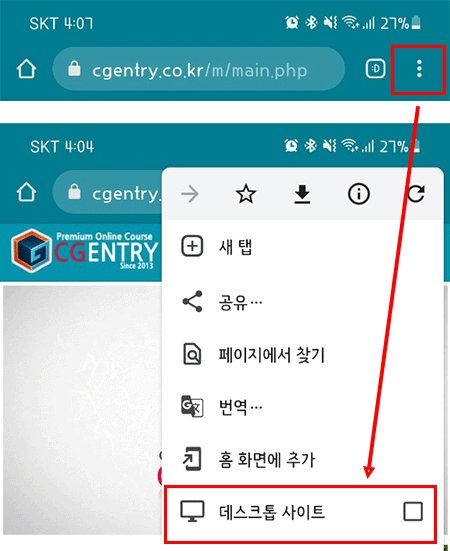
< When using Android devices or the Chrome browser > |
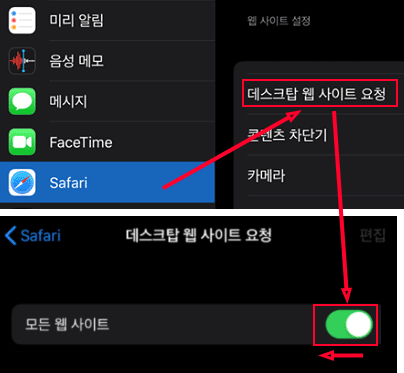
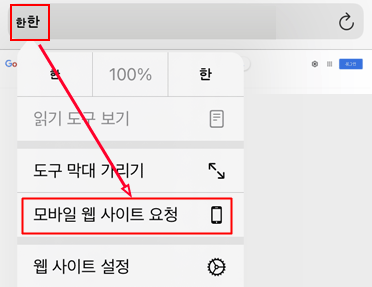
< When using iPhone, iPad, or Safari browser > |
|
1. In the Chrome browser, click the menu button > turn off Desktop Site. (If this option is checked, the site will be recognized as the PC version. Please make sure to turn it off.) 2. Access cgentry.co.kr and check whether the address redirects to cgentry.co.kr/m/. You may also directly type cgentry.co.kr/m/ into the address bar.
|
< How to access all pages in mobile mode > 1. Go to iPad Settings > Safari > Request Desktop Website > turn off All Websites. Please disable this option. 2. Access cgentry.co.kr and check whether the address redirects to cgentry.co.kr/m/. You may also directly type cgentry.co.kr/m/ into the address bar.
< How to temporarily switch only the current page to mobile mode > 1. While on the current page, long-press Aa or 한한 at the top of the browser, then tap Request Mobile Website to switch to mobile browser mode. 2. Access cgentry.co.kr and check whether the address redirects to cgentry.co.kr/m/. You may also directly type cgentry.co.kr/m/ into the address bar.
|
Please refer to this when using the service.
Thank you.
Views 667